IT Incident Management — Autotask, Webroot & Datto RMM

Live incident triage at MIDRANGE GROUP: Autotask ticketing, Datto RMM remote access, and Webroot false-positive resolution.
Context
At MIDRANGE GROUP, within the Support Technique team alongside Théo KACEL (Systems & Network Administrator), I handled support requests for managed clients, received across three intake channels: direct phone calls to the support line, email to the support address, and automatic alerts raised by the Datto RMM agent installed on client endpoints.
Once a ticket is opened in Autotask, it is routed either to the Support Technique team (user-facing incidents) or to the Exploitation team (infrastructure and monitoring). Here's how I handled a live client ticket from intake to resolution.
How tickets reach the support team
- Phone: client calls the support line directly. The technician creates a ticket in Autotask manually and begins triage immediately.
- Email: client sends a message to the support address. Autotask ingests it automatically and creates a ticket, which is then assigned to the correct queue.
- Datto RMM agent: the agent installed on managed endpoints monitors the device in real time and can raise alerts automatically (CPU spike, disk full, security event). These generate tickets in Autotask without any client action.
Incident resolution — step by step
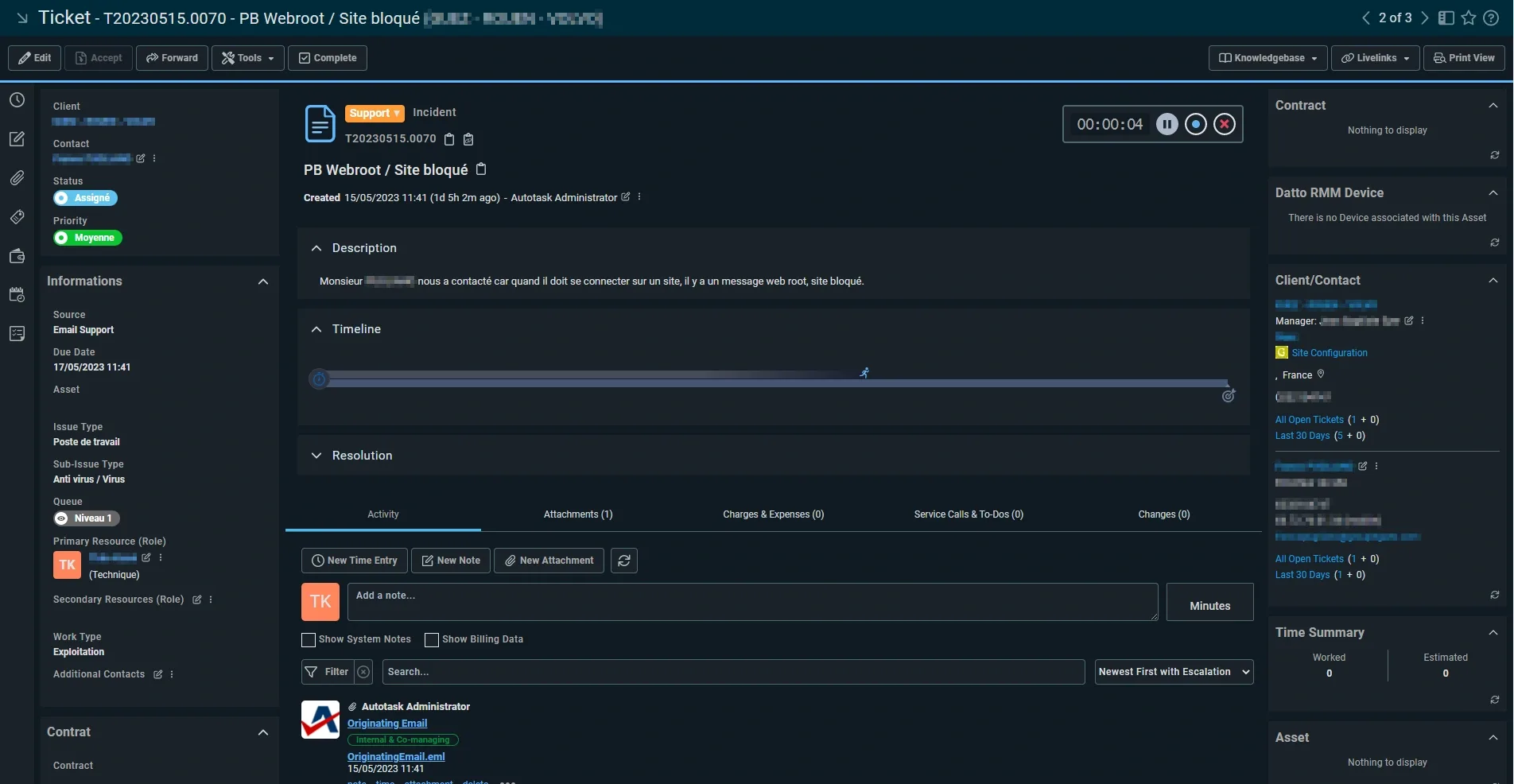
- 1Step 1 — Ticket received in AutotaskA client reported being unable to access a specific website. Webroot was displaying a 'site blocked' warning on their machine. The ticket was assigned to me, with Théo on hand for support.
- 2Step 2 — Remote access via Datto RMMWe contacted the client and requested permission to take remote control of their workstation via Datto RMM. This allowed us to reproduce the issue in real time, see the exact Webroot warning message, and confirm which URL was being blocked.
- 3Step 3 — Diagnosis: Webroot false positiveAfter inspecting the blocked URL, we determined it was a legitimate business site incorrectly flagged by Webroot's threat intelligence. The site was not malicious — Webroot had classified it as suspicious based on its domain reputation score.
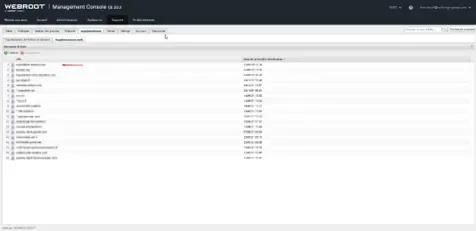
- 4Step 4 — URL suppression in Webroot Management ConsoleWe connected to the Webroot Management Console (CE 23.2) and navigated to the URL suppression list under the client's policy. We added the blocked domain to the suppression (whitelist) list. The change propagated to the client's endpoint within minutes, and the site became accessible without any further intervention on the machine.
- 5Step 5 — Resolution logged in AutotaskA time entry was created in Autotask with a summary of the issue, the root cause (false positive), and the resolution steps taken. The ticket was closed as 'Complete'. The time worked was recorded for client billing and used as part of the audit trail.
Impact
Incident resolved in a single session, entirely remote, with no onsite trip and no software reinstall on the client's machine.
Key figures
Best Practices
- Webroot false positives on legitimate business sites are a recurring support scenario: the first reflex should always be to check the URL suppression list before escalating or reconfiguring the endpoint.
- Datto RMM remote access eliminates the need for on-site visits for most user-facing incidents, reducing resolution time significantly.
- Autotask time entries are not optional: they serve as both a billing record for the client and a searchable knowledge base for recurring issues.
- Routing matters: distinguishing between a Support Technique ticket (user-facing) and an Exploitation ticket (infrastructure) from the first description saves time and avoids wrong-team assignments.
- Always reproduce the issue remotely before touching any configuration — confirming the exact symptom prevents premature or incorrect changes.
Tools used
Screenshots