
← Back to projects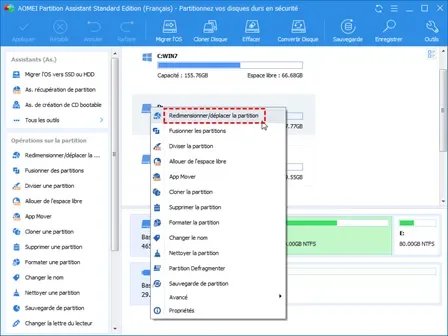

TRAINING LAB
Disk Partitioning & Backup (AOMEI + Windows Server Backup)
AOMEI Partition Assistant · AOMEI Backupper · Windows Server 2012 Backup · VirtualBox
Context
Training exercise at Greta du Val d Oise (Lycée Louis Jouvet, Taverny) under trainer Miguel MI-POUDOU. The task covered two VMs in VirtualBox: a Windows 10 client VM (partition resize + disk backup with AOMEI tools) and a Windows Server 2012 VM (Windows Server Backup role installation + scheduled daily backup).
Scope & Objectives
- Windows 10 client VM: oversized E: partition to shrink without data loss
- Windows Server 2012 VM: no backup strategy in place
- Need for a full disk image backup on the client VM as a restore point
- Need for an automated daily server backup including system state
- Virtualized VirtualBox environment — training exercise under real-world conditions
Solution & Deliverables
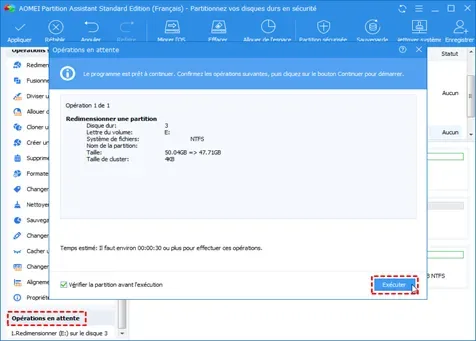
- E: partition resized from 50.04 GB to 47.71 GB via AOMEI Partition Assistant — zero data loss
- Full disk image backup created with AOMEI Backupper Standard — completed successfully
- Windows Server Backup role installed and enabled on Windows Server 2012
- Scheduled backup configured: full recovery + system state, VSS full, daily at 14:00
- 22.67 GB transferred to the dedicated 60 GB virtual disk on first run
Stack & Technologies
- AOMEI Partition Assistant — partition resizing without data loss
- AOMEI Backupper Standard — full disk image backup
- Windows Server Backup — native Windows Server 2012 backup role
- VSS (Volume Shadow Copy Service) — consistent system state backup
- VirtualBox — Type 2 hypervisor for the training environment
- Windows 10 / Windows Server 2012 — VM operating systems
Procedure
- 1Partition resize — AOMEI Partition AssistantRight-clicked E: → Resize/Move. Reduced from 50.04 GB to 47.71 GB (NTFS, 4 KB cluster, Disk 3). Clicked Apply to commit the pending operation.
- 2Disk backup — AOMEI BackupperBackup → Disk Backup. Named the task, selected source disks, chose destination path and started. Operation completed successfully.
- 3Install Windows Server Backup roleServer Manager → Manage → Add Roles and Features. Checked Windows Server Backup in the Features list. Enabled auto-restart and clicked Install.
- 4Configure scheduled backupAdded a dedicated 60 GB virtual disk as destination. Configured: full recovery + system state, VSS full backup, daily at 14:00. First run transferred 22.67 GB to SRV2 2022_03_21 13:18 DISK_01.
Outcomes
- Partitioning
- 50.04 GB → 47.71 GB(No data loss)
- Client backup
- Full disk image(AOMEI Backupper — success)
- Server backup
- 22.67 GB transferred(Scheduled daily at 14:00)
- Skills
- 4 tools mastered(AOMEI PA, AOMEI Backupper, WSB, VirtualBox)
Screenshots