
← Back to projects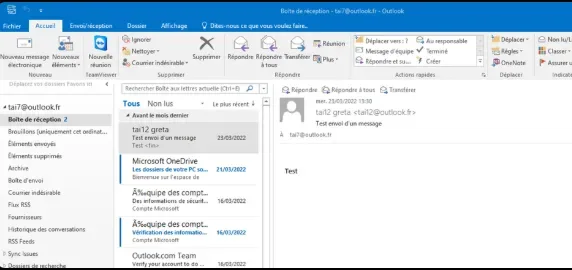

TRAINING LAB
Configuring Outlook 2016 Email Account
Outlook 2016 · IMAP/Exchange · User Onboarding · Email Provisioning · Greta du Val d'Oise
Context
As part of the TAI training at Greta du Val d Oise, I completed an email provisioning exercise using Microsoft Outlook 2016. The scenario mirrors a real-world IT technician task: a new employee arrives on their first day, their workstation is already set up (Windows 10, Office 2016 installed), and the technician must configure their professional email account so they can start working immediately.
Scope & Objectives
- Configure a Microsoft/Exchange email account (tai7@outlook.fr) in Outlook 2016
- Validate bidirectional communication with a peer account (tai12@outlook.fr)
- Get the workstation email-ready in under 5 minutes after handover
- Simulate a Day 1 onboarding — mailbox, calendar and contacts accessible immediately
- Document the procedure for reproduction in a professional context
Solution & Deliverables
- Outlook 2016 profile created using Exchange ActiveSync auto-discovery for outlook.fr
- No manual server entry required — automatic account configuration wizard used
- Test email sent from tai7@outlook.fr to tai12@outlook.fr and confirmed received
- Mailbox, calendar and contacts immediately accessible in Outlook 2016
- Email operational in under 5 minutes from workstation handover
Stack & Technologies
- Microsoft Outlook 2016 — desktop email client
- Exchange ActiveSync — synchronization protocol auto-detected
- Autodiscover — automatic server settings detection mechanism
- Windows 10 — operating system of the provisioned workstation
- Office 2016 — pre-installed productivity suite
Configuration Procedure
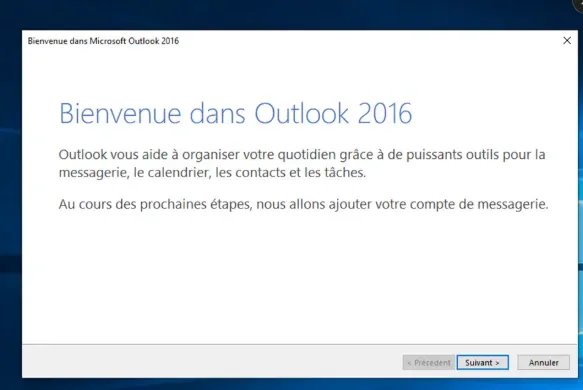
- 1Launch Outlook 2016Opened Outlook 2016 for the first time — welcome wizard launched automatically to add the email account.
- 2Enter account detailsEntered user name, email address (tai7@outlook.fr) and password. Outlook 2016 supports both automatic and manual configuration.
- 3Automatic configurationAutodiscover contacted Microsoft servers and automatically detected Exchange ActiveSync settings. No manual server entry required.
- 4Verification — send & receiveTest email sent from tai7 to tai12. Receipt confirmed by switching to the tai12 account — bidirectional communication validated.
Outcomes
- Account configured
- tai7@outlook.fr(Fully operational Outlook 2016 profile)
- Protocol
- Exchange ActiveSync(Auto-detected by Autodiscover)
- Time to ready
- < 5 minutes(Day 1 onboarding scenario)
- Validation
- Test email confirmed(Bidirectional tai7 ↔ tai12)
Screenshots