
← Back to projects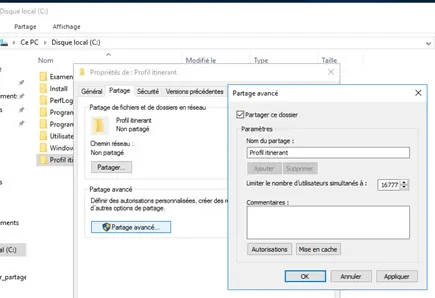

TRAINING LAB
Configuring AD DS Roaming Profiles
Windows Server 2016 · AD DS · Roaming Profiles · ebtai.fr domain
Context
Training exercise at Greta du Val d Oise under trainer Marc HAZAN. Configured roaming profiles on a Windows Server 2016 domain controller (ebtai.fr) and verified synchronization from a Windows 10 client VM — both running in VirtualBox. Goal: allow users to retrieve their full work environment (desktop, documents, settings) on any domain-joined machine they log into.
Scope & Objectives
- Create a shared folder on the server to host roaming profile data
- Configure NTFS and share permissions for the domain Users group
- Set the profile path in Active Directory using the %username% variable
- Verify automatic subfolder creation on first client login
- Validate full synchronization from the Windows 10 client VM
Solution & Deliverables
- Profil itinérant folder created on C: and shared via Advanced Sharing
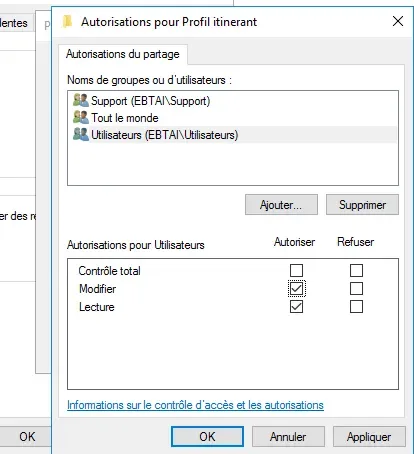
- Share permissions: EBTAI\Utilisateurs — Modify + Read (Everyone removed)
- NTFS permissions verified to allow profile ownership by users
- AD profile path configured: \\\\DC1\\Profil itinérants\\%username%
- Subfolder technicien.tai.V6 auto-created on first Windows 10 login — sync confirmed
Stack & Technologies
- Windows Server 2016 — domain controller (ebtai.fr)
- Active Directory Users and Computers — profile path configuration
- NTFS Permissions — file-system level access control
- SMB Share / Advanced Sharing — network share for roaming profiles
- %username% variable — automatic per-user path personalization
- VirtualBox — Type 2 hypervisor for the training environment
Procedure
- 1Create shared folderProfil itinérant folder created on C:. Properties → Sharing → Advanced Sharing → enabled with share name Profil itinérant.
- 2Configure share permissionsPermissions → removed Everyone → added EBTAI\Utilisateurs with Modify + Read. Clicked Apply.
- 3Configure NTFS permissionsFolder security verified to ensure Full Control for profile ownership. Network path: \\\\serveur\\Profil itinérant.
- 4Set AD profile pathAD Users and Computers (ebtai.fr) → right-clicked technicien → Properties → Profile tab. Set path: \\\\DC1\\Profil itinérants\\%username%. Applied.
- 5Verify from client VMLogged into Windows 10 as EBTAI\technicien. Subfolder technicien.tai.V6 appeared in the share (15/06/2022) — roaming profile linked and synchronized.
Outcomes
- Shared folder
- Profil itinérant(EBTAI\Utilisateurs: Modify + Read)
- AD profile path
- \\\\DC1\\Profil itinérants\\%username%(Per-user automatic path)
- Verification
- technicien.tai.V6 created(Automatically on first login)
- Skills
- AD DS, roaming profiles, NTFS, SMB(Validated autonomously)
Screenshots