
← Back to projects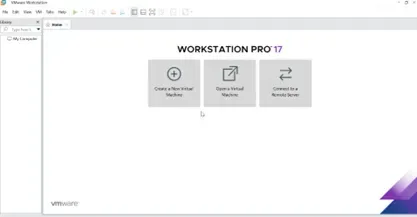

TRAINING LAB
Maintaining a Virtualized IT Environment
VMware Workstation Pro 17 · Windows Server 2022 · AD DS / DNS / DHCP / WDS
Context
Personal lab built as part of a Systems & Networks program. I deployed a complete Windows Server 2022 environment inside VMware Workstation Pro 17 to replicate a real enterprise IT infrastructure: Active Directory domain, DNS, DHCP, and automated OS deployment via WDS/PXE — all on a fully managed private VMware NAT network.
Lab Architecture
- Hypervisor: VMware Workstation Pro 17 (Type 2) — VMware NAT network 192.168.100.0/24
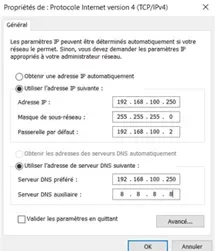
- DCAD22 — Windows Server 2022: static IP 192.168.100.250, gateway 192.168.100.2
- AD domain: DP-AICHA.LAN (forest root), DNS with 8.8.8.8 forwarder
- DHCP scope POOL1: 192.168.100.1–254, exclusions .1–.20 and .240–.254, PXEClient option
- WDS linked to AD domain, boot.wim imported, admin approval for unknown machines
- Windows 10 Pro client — joined as PC LYES, roaming profile and mapped drive configured
Services Deployed
- AD DS: DP-AICHA.LAN forest, OUs, accounts LYES (standard) and Technicien (IT admin)
- DNS: DP-AICHA.LAN zone with 8.8.8.8 forwarder for internet resolution
- DHCP: POOL1 scope with option 060 PXEClient for network deployment
- WDS / PXE: Windows 10 OS deployment over the network — no USB or manual install
- GPO: roaming profiles and mapped drive (\\\\DCAD22\\Partage) applied at logon
- Permissions: shared folder Modify+Read for LYES, Read for Technicien
Stack & Technologies
- VMware Workstation Pro 17 — Type 2 hypervisor, VMware NAT network
- Windows Server 2022 — Domain controller (DCAD22)
- Active Directory DS — Identity management, OUs, accounts and policies
- DNS Server — Domain name resolution with internet forwarder
- DHCP Server — Dynamic IP address allocation with PXE options
- WDS (Windows Deployment Services) — Network OS deployment (PXE/TFTP)
- Group Policy (GPO) — Roaming profiles and mapped network drives
Setup Phases
- 1VM setup & DC promotionWindows Server 2022 installed from ISO. Static IP 192.168.100.250, hostname DCAD22. Promoted to DC via AD DS wizard — created DP-AICHA.LAN forest root. DNS installed with 8.8.8.8 forwarder.
- 2DHCP & WDSDHCP role installed and authorized. POOL1 scope created with PXEClient option. WDS linked to AD domain, boot.wim imported. Admin-approval mode enabled for unknown machines.
- 3Active Directory & GPOOUs and accounts created: LYES (standard) and Technicien (admin). GPOs applied for roaming profiles and mapped drive \\\\DCAD22\\Partage at logon.
- 4Domain join & PXE deploymentBlank Windows 10 VM booted from NIC. DHCP IP obtained, PXE options received, WDS contacted. After admin approval, Windows 10 deployed over the network. Renamed PC LYES and joined to DP-AICHA.LAN.
Outcomes
- Infrastructure
- AD domain operational(Full VMware NAT network)
- OS deployment
- PXE/WDS working(No USB or manual install required)
- Policies
- GPOs active(Roaming profiles + mapped drives)
- WDS security
- Admin approval mode(Unknown machines require authorization)
- Skills
- AD DS, DNS, DHCP, WDS, GPO(Complete personal lab)
- Client validated
- PC LYES joined(Profile and mapped drive verified)
Screenshots